9 posts tagged with "ASP.NET Core"

Microsoft ASP.NET Core framework

View All Tags

First Look at Project Tye

· 3 min read
Mark Burton
Software Engineer & Technical Writer
PS C:\Source\GitRepos\SwaggerAndHealthCheckBlog> tye deploy --interactive
Loading Application Details...
Verifying kubectl installation...
Drats! 'deploy' failed: Cannot apply manifests because kubectl is not installed.
``` ```
C:\WINDOWS\system32>choco install kubernetes-cli
Chocolatey v0.10.15
Installing the following packages:
kubernetes-cli
By installing you accept licenses for the packages.
Progress: Downloading kubernetes-cli 1.20.2... 100% kubernetes-cli v1.20.2 [Approved]
kubernetes-cli package files install completed. Performing other installation steps.
The package kubernetes-cli wants to run 'chocolateyInstall.ps1'.
Note: If you don't run this script, the installation will fail.
Note: To confirm automatically next time, use '-y' or consider:
choco feature enable -n allowGlobalConfirmation
Do you want to run the script?([Y]es[A]ll - yes to all[N]o[P]rint): y Extracting 64-bit C:\ProgramData\chocolatey\lib\kubernetes-cli\tools\kubernetes-client-windows-amd64.tar.gz to C:\ProgramData\chocolatey\lib\kubernetes-cli\tools...
C:\ProgramData\chocolatey\lib\kubernetes-cli\tools
Extracting 64-bit C:\ProgramData\chocolatey\lib\kubernetes-cli\tools\kubernetes-client-windows-amd64.tar to C:\ProgramData\chocolatey\lib\kubernetes-cli\tools...
C:\ProgramData\chocolatey\lib\kubernetes-cli\tools ShimGen has successfully created a shim for kubectl.exe The install of kubernetes-cli was successful. Software installed to 'C:\ProgramData\chocolatey\lib\kubernetes-cli\tools' Chocolatey installed 11 packages. See the log for details (C:\ProgramData\chocolatey\logs\chocolatey.log). C:\WINDOWS\system32>cd C:\Source\GitRepos\SwaggerAndHealthCheckBlog C:\Source\GitRepos\SwaggerAndHealthCheckBlog>tye deploy --interactive
Loading Application Details...
Verifying kubectl installation...
Drats! 'deploy' failed: Cannot apply manifests because kubectl is not installed. C:\Source\GitRepos\SwaggerAndHealthCheckBlog>kubectl version --client
Client Version: version.Info\\{Major:"1", Minor:"20", GitVersion:"v1.20.2", GitCommit:"faecb196815e248d3ecfb03c680a4507229c2a56", GitTreeState:"clean", BuildDate:"2021-01-13T13:28:09Z", GoVersion:"go1.15.5", Compiler:"gc", Platform:"windowsamd64"\} C:\Source\GitRepos\SwaggerAndHealthCheckBlog>cd %USERPROFILE% C:\Users\mburton>mkdir .kube C:\Users\mburton>cd .kube C:\Users\mburton\.kube>New-Item config -type file
'New-Item' is not recognized as an internal or external command,
operable program or batch file. C:\Users\mburton\.kube>pwsh PowerShell 7.0.3 Copyright (c) Microsoft Corporation. All rights reserved. https:/aka.mspowershell Type 'help' to get help. A new PowerShell stable release is available: v7.1.0 Upgrade now, or check out the release page at: https:/aka.msPowerShell-Release?tag=v7.1.0 PS C:\Users\mburton\.kube> New-Item config -type file Directory: C:\Users\mburton\.kube Mode LastWriteTime Length Name
---- ------------- ------ ----
-a--- 07022021 00:36 0 config PS C:\Users\mburton\.kube> cd C:\Source\GitRepos\SwaggerAndHealthCheckBlog\
PS C:\Source\GitRepos\SwaggerAndHealthCheckBlog> tye deploy --interactive
Loading Application Details...
Verifying kubectl installation...
Drats! 'deploy' failed: Cannot apply manifests because kubectl is not installed.
PS C:\Source\GitRepos\SwaggerAndHealthCheckBlog> Install-Script -Name 'install-kubectl' -Scope CurrentUser -Force
PS C:\Source\GitRepos\SwaggerAndHealthCheckBlog> install-kubectl.ps1 c:\kubectl
==>Getting download link from https:/kubernetes.iodocstaskstoolsinstall-kubectl/
==>analyzing Downloadlink
==>starting Download from https:/dl.k8s.ioreleasev1.20.0binwindowsamd64kubectl.exe using Bitstransfer
==>starting 'c:\kubectl\kubectl.exe version'
Client Version: version.Info\\{Major:"1", Minor:"20", GitVersion:"v1.20.0", GitCommit:"af46c47ce925f4c4ad5cc8d1fca46c7b77d13b38", GitTreeState:"clean", BuildDate:"2020-12-08T17:59:43Z", GoVersion:"go1.15.5", Compiler:"gc", Platform:"windowsamd64"\}
Unable to connect to the server: dial tcp [::1]:8080: connectex: No connection could be made because the target machine actively refused it. You can now start kubectl from c:\kubectl\kubectl.exe
copy your remote kubernetes cluster information to C:\Users\mburton\.kubeconfig PS C:\Source\GitRepos\SwaggerAndHealthCheckBlog> tye deploy --interactive
Loading Application Details...
Verifying kubectl installation...
Drats! 'deploy' failed: Cannot apply manifests because kubectl is not installed.
PS C:\Source\GitRepos\SwaggerAndHealthCheckBlog> kubectl
kubectl controls the Kubernetes cluster manager. Find more information at: https:/kubernetes.iodocsreferencekubectloverview/
``` Tye picked random ports while the project app config already specified ports.
https:/github.comdotnettyeissues178
Validation asp.net Configuration at Startup

· One min read
Mark Burton
Software Engineer & Technical Writer

Using the [Options pattern in ASP.NET Core] allows you to benefit from [Options validation], but this only fires the first time the configuration is accessed. The Options Pattern is build on top of Configure and OptionsBuilder.Bind(IConfiguration config) will actually call Configure(IConfiguration config) directly, so they are also equivalent. Both methods do the same job but AddOptions came later and allows more customizations. It would be much better to prevent a service starting if there are configuration values missing or with invalid values. Such functionality is not provided by the framework as of .net5.0, the GitHub issue [Options Validation: support eager validation] remains open. The following method of Options Validation is taken from [Baget] with small modifications to allow sharing the implementation with multiple services. You can get the full working demo from my GitHub repo. [Options pattern in ASP.NET Core]: https:/docs.microsoft.comen-usaspnetcorefundamentalsconfigurationoptions?view=aspnetcore-3.1#options-validation [Options validation]: https:/docs.microsoft.comen-usaspnetcorefundamentalsconfigurationoptions?view=aspnetcore-3.1#options-validation [Options Validation: support eager validation]: https:/github.comdotnetruntimeissues36391 [Baget]: https:/github.comloic-sharmaBaGet [ConfigureOptions doesn't register validations as expected]: https:/github.comdotnetruntimeissues38491

· 2 min read
Mark Burton
Software Engineer & Technical Writer

A Route is the inbound URL which the reverse proxy is going to act on. The cluster is a list of potential destination URLs.

"ReverseProxy": {
"Routes": [
{
"RouteId": "LoginServiceRoute",
"ClusterId": "clusterLoginService",
"Match": {
"Path": "/loginservice/{**remainder}"
},
"Transforms": [
{
"PathRemovePrefix": "/loginservice"
}
]
}
],
"Clusters": {
"clusterLoginService": {
"Destinations": {
"clusterLoginService/destination1": {
"Address": "https://localhost:1116/"
}
}
}
}
}
``` This would be similar to this NGINX virtual server configuration.

```nginx
server {
listen 80;
server_name localhost;
location /loginservice/ {
proxy_pass https://localhost:1116/;
}
}
``` Take care when adding a transformation to a route, **do not** add a single transformation, it must be wrapped in [] or you will get no transformations and lots of confusion.

My mistake looked like this

```json
{
"RouteId": "TestServiceRoute",
"ClusterId": "clusterTestService",
"Match": {
"Path": "/testservice/{**remainder}"
},
"Transforms": {
"PathRemovePrefix": "/testservice"
}
},
``` It took debugging into the YARP source to figure out my mistake which resulted in 503 and 404 errors due to URLs like `https://localhost:1116/loginservice/hc` instead of the correct `https://localhost:1116/hc`.

```json
{
"RouteId": "TestServiceRoute",
"ClusterId": "clusterTestService",
"Match": {
"Path": "/testservice/{**remainder}"
},
"Transforms": [ // <-- was missing
{
"PathRemovePrefix": "/testservice"
}
] // <-- was missing
},
``` It is easier to see the issue as soon as you start adding additional transformations. In preview 5 for example it is possible to transform route values to querystring parameters, now it is clear that `Transformations` must be an array.

```json
{
"RouteId": "TestPatternServiceRoute",
"ClusterId": "clusterTestService",
"Match": {
"Path": "/testpatternservice/{**remainder}"
},
"Transforms": [
{
"PathPattern": "/search"
},
{
"QueryRouteParameter": "q",
"Append": "remainder"
}
]
},

How to Setup ASP.NET Core Health Check UI

· 2 min read
Mark Burton
Software Engineer & Technical Writer

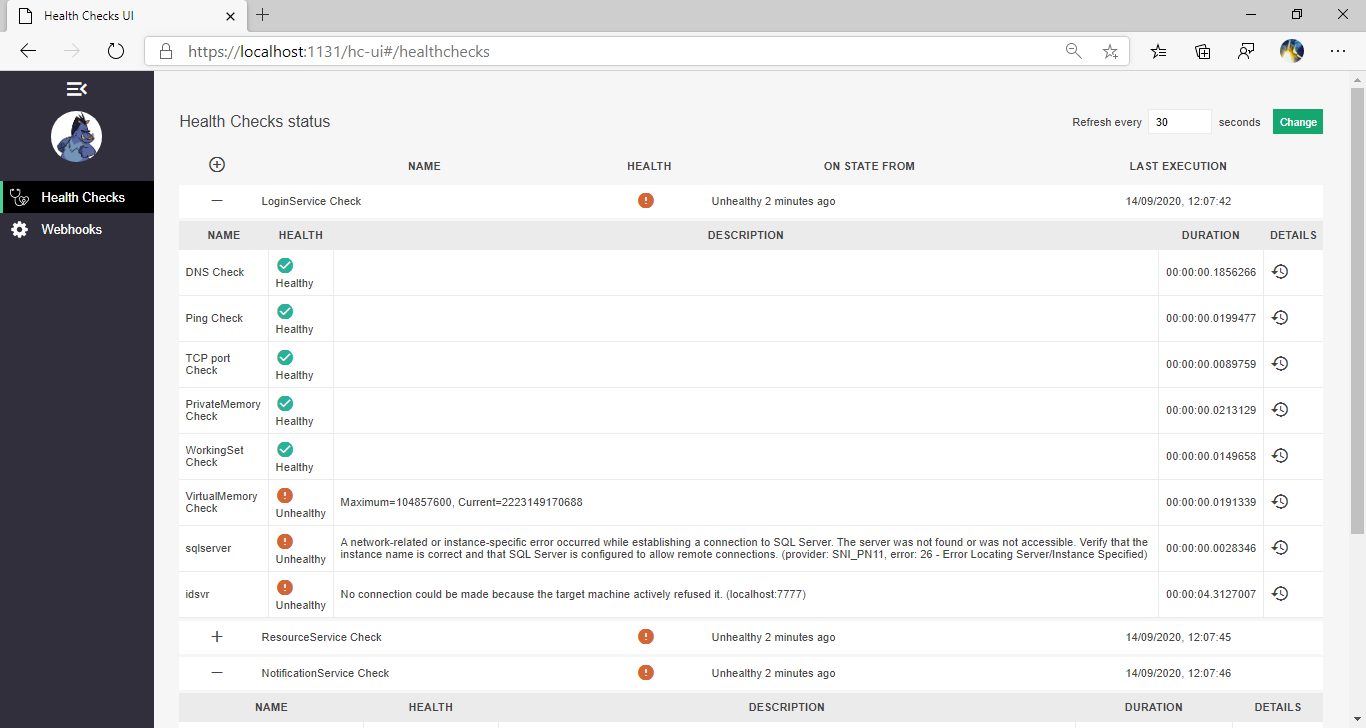
In Part one we setup the health check endpoints, now to add a frontend.

The Health Checks UI is best hosted in its own service as it can consolidate health checks for a number of services.

Swagger CORS error

Adding the HealthChecks UI to the service involves adding 2 nuget packages, the main AspNetCore.HealthChecks.UI package and a storage provider, initially I have used the InMemory storage provider as I do not have the need to see historical data. There are also providers various databases including SqlServer and SQLite which can be used to persist the data.

<PackageReference Include="AspNetCore.HealthChecks.UI" Version="$(AspNetCoreHealthChecksUIVersion)" />
<PackageReference Include="AspNetCore.HealthChecks.UI.InMemory.Storage" Version="$(AspNetCoreHealthChecksUIVersion)" />

As the HealthChecks nuget packages will be used across all projects I have set the version numbers centrally in Directory.Build.props.

<AspNetCoreHealthChecksUIVersion>3.1.1</AspNetCoreHealthChecksUIVersion>

The HealthChecks UI can now be added to ConfigureServices and Configure in Startup.cs.

As I want to limit the access to the UI in the same way as I did for the HealthCheck endpoints I have the service listening on multiple ports and use RequireHost when configuring the endpoints to ensure the UI is only accessible internally.

public void ConfigureServices(IServiceCollection services)
{
services
.AddHealthChecksUI()
.AddInMemoryStorage();
services.AddControllers();
}

public void Configure(IApplicationBuilder app, IWebHostEnvironment env)
{
app.UseHealthChecksUI();
app.UseEndpoints(endpoints => {
endpoints.MapControllers();
endpoints.MapHealthChecksUI(config => {
config.UIPath = "/hc-ui";
}).RequireHost($"*:{Configuration["ManagementPort"]}");
});
}
``` Finally we need to tell the UI where to read the HealthChecks from, this can either be done in a configuration file ```json
...
"https_port": 1131,
"Urls": "http://localhost:1130;https://localhost:1131;https://localhost:1132",
"ManagementPort": "1132",
"AllowedHosts": "*",
"HealthChecks-UI": {
"HealthChecks": [
{
"Name": "LoginService Check",
"Uri": "https://localhost:1116/hc"
},
{
"Name": "ResourceService Check",
"Uri": "https://localhost:5002/hc"
},
{
"Name": "NotificationService Check",
"Uri": "https://localhost:1179/hc"
}
]
}
...
``` or in code by adding settings to the `AddHealthChecksUI` method. ```csharp
services.AddHealthChecksUI(setupSettings: settings => {
settings
.DisableDatabaseMigrations()
.AddHealthCheckEndpoint(name: healthCheckName, uri: healthCheckUri)
.AddWebhookNotification(name: webhookName, uri: webhookUri, payload: webhookPayload,
restorePayload: webhookRestorePayload)
.SetEvaluationTimeInSeconds(evaluationTimeInSeconds)
.SetMinimumSecondsBetweenFailureNotifications(minimumSeconds);
}).AddInMemoryStorage();
``` You can get the full working demo from [my GitHub repo](https:/github.comMarkZitherSwaggerAndHealthCheckBlog).

Secure ASP.NET Core Health Checks to a specific port

· 2 min read
Mark Burton
Software Engineer & Technical Writer

To secure Health Checks it is possible to make them available on internal addresses only and on a different port to the publicly served pagesAPI endpoints. First we need to make the service available over 2 different ports, this can be achieved by adding a Urls value to the appsettings.config. json "Logging": \\\{ "IncludeScopes": false, "LogLevel": \{ "Default": "Debug", "System": "Information", "Microsoft": "Information" \\} }, "Urls": "http:/localhost:1114;http:/localhost:1115", "ManagementPort": "1115", "ConnectionStrings": \\{ "LoginServiceDb": "Data Source=.,11433;Initial Catalog=LoginServiceDatabase;Integrated Security=true;" \}, This can be done in several ways, and is described in more detail by Andrew Lock in his post 5 ways to set the URLs for an ASP.NET Core app. Now when you debug the service you should see in the log that it is listening on 2 ports ``` info: Microsoft.Hosting.Lifetime[0] Now listening on: http:/localhost:1114 info: Microsoft.Hosting.Lifetime[0] Now listening on: http:/localhost:1115 info: Microsoft.Hosting.Lifetime[0] Application started. Press Ctrl+C to shut down.

**Special note if you are using http.sys** If you want to run this over https you will need to take care of the port reservation and certification binding. I have a explanation of that in the GitHub Repo README.
::: Now that we have the service listening on 2 addresses we can specify one of them will serve up the Health Checks by setting the `ManagementPort`. In `startup.cs` we can use the `ManagementPort` to secure the Health Check endpoint ```csharp HealthCheck middleware app.UseHealthChecks("hc", $"\\{Configuration["ManagementPort"]\}", new HealthCheckOptions() \\{ Predicate = _ => true, ResponseWriter = UIResponseWriter.WriteHealthCheckUIResponse \}); app.UseEndpoints(endpoints => \\\{ endpoints.MapControllerRoute("default", "\{controller=Home\\}\{action=Index\}\\{id?\}"); endpoints.MapHealthChecks("health").RequireHost($"*:\\{Configuration["ManagementPort"]\}"); });
``` If you debug now you will have access to the `health` endpoint only on the `ManagementPort` and not on the public facing URL. ![HealthCheck external shows 404 while internal shows overall health status](/img/health_endpoint.png) More interestingly you can also go to the `hc` endpoint, this contains more detailed information about the state of the service and therefore needs to be secured. ![HealthCheck external shows 404 while internal shows detailed health status](/img/hc_endpoint.png) Now you can safely get the status of your services reported as json, but there are 2 further aspects of ASP.NET Core Health Checks, the UI and push-based monitoring, i will cover those in parts 2 and 3.

Secure Swagger on ASP.NET Core by address and port

· 3 min read
Mark Burton
Software Engineer & Technical Writer

This follows on from my previous post Secure ASP.NET Core Health Checks to a specific port and assumes that you already have your service running over 2 ports and have specified a ManagementPort in the appsettings.json file.

Special note if you are using http.sys If you want to run this over https you will need to take care of the port reservation and certification binding. I have a explanation of that in the GitHub Repo README.

Swagger is a powerful tool to test your APIs and allow users to easily discover how to consume your APIs, but it can also open up security issues and make it easier for attackers to access your data.

Best practice is to secure access to your Swagger pages using OAuth as described by Scott Brady but in some scenarios it would be better if the Swagger pages are not be accessible externally at all.

As discussed in this GitHub issue, it is not possible out of the box to limit access to a specific URL.

By changing the SwaggerEndpoint to specify absolute URL it is possible to prevent access to the documentation on the public facing URL.

app.UseSwaggerUI(c => {
c.SwaggerEndpoint("http://localhost:1115/swagger/v1/swagger.json", "Login Service API V1");
c.RoutePrefix = string.Empty;
});

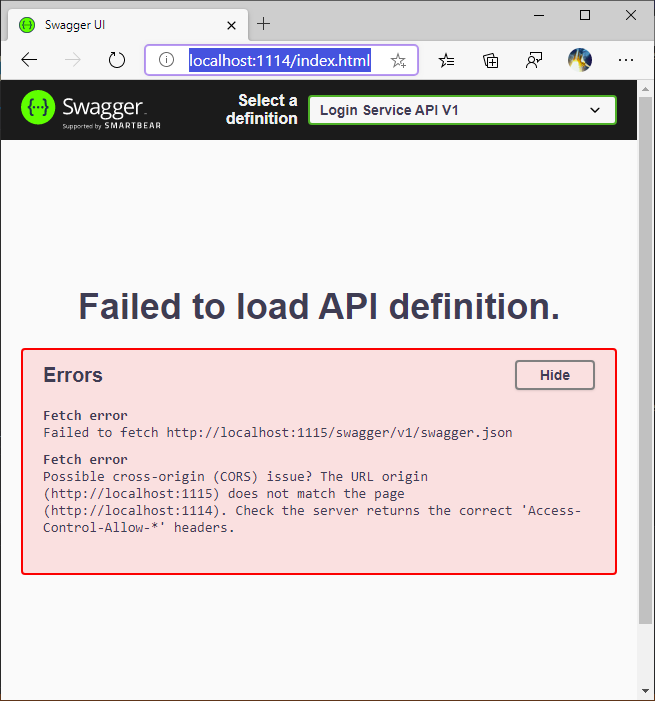
However this still leaves the Swagger homepage accessible displaying an error message due to CORS issues.

Swagger CORS error

To reject all requests to Swagger that are not on an internal address we need to create a middleware, something like this suggestion by Thwaitesy

public class SwaggerUrlPortAuthMiddleware {
private readonly RequestDelegate next;

public SwaggerUrlPortAuthMiddleware(RequestDelegate next) {
this.next = next;
}

public async Task InvokeAsync(HttpContext context, IConfiguration configuration) {
// Make sure we are hitting the swagger path, and not doing it locally and are on the management port
if (context.Request.Path.StartsWithSegments("/swagger") && !configuration.GetValue<int>("ManagementPort").Equals(context.Request.Host.Port)) {
// Return unauthorized
context.Response.StatusCode = (int)HttpStatusCode.Unauthorized;
}
else {
await next.Invoke(context);
}
}

public bool IsLocalRequest(HttpContext context) {
// Handle running using the Microsoft.AspNetCore.TestHost and the site being run entirely locally in memory without an actual TCP/IP connection
if (context.Connection.RemoteIpAddress == null && context.Connection.LocalIpAddress == null) {
return true;
}
if (context.Connection.RemoteIpAddress.Equals(context.Connection.LocalIpAddress)) {
return true;
}
if (IPAddress.IsLoopback(context.Connection.RemoteIpAddress)) {
return true;
}
return false;
}
}

Assuming your project layout is something like BaGet.

The middleware should be added to your shared project in the Extensions directory.

Add the following extension method to IApplicationBuilderExtensions to add the middleware and keep your startup clean.

public static class SwaggerAuthorizeExtensions {
public static IApplicationBuilder UseSwaggerAuthorized(this IApplicationBuilder builder) {
return builder.UseMiddleware<SwaggerUrlPortAuthMiddleware>();
}
}

This middleware must be registered before swagger, so in startup.cs change Configure to add the middleware by calling the new extension method.

public void Configure(IApplicationBuilder app, IWebHostEnvironment env) {
...
app.UseSwaggerAuthorized();
app.UseSwagger();
app.UseSwaggerUI(c => {
c.SwaggerEndpoint("/v1/swagger.json", "Login Service API V1");
});
...
}

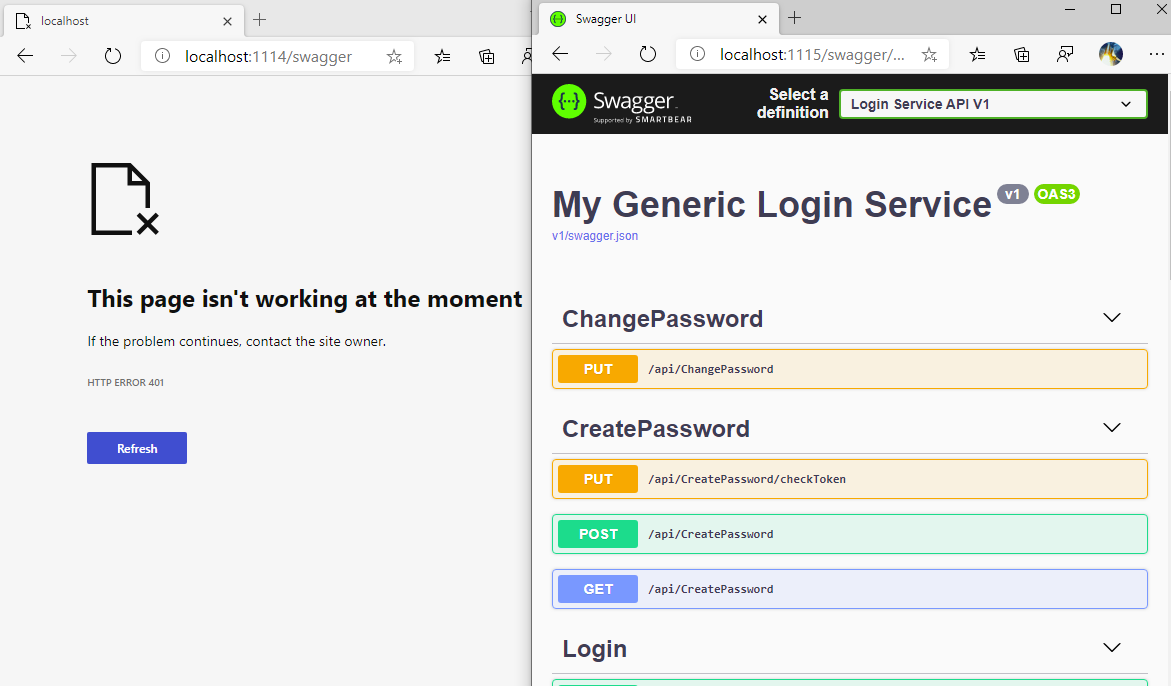
Now running the service will return a 401 on the public facing URL and serve swagger internally.

Public facing swagger returns 401 internal works

It is still recommended to secure swagger with OAuth as a misconfiguration could still lead to your Swagger being exposed this way, for example behind a reverse proxy.

Job Interview Technical Test Preparation

· 2 min read
Mark Burton
Software Engineer & Technical Writer

docs.microsoft.com Apply to a controller action by specifying it in the signature public IActionResult EncodedName([ModelBinder(typeof(Base64StringBinder))] string name). Apply to a model using [ModelBinder(BinderType = typeof(AuthorEntityBinder))] and register in startup.cs

public void ConfigureServices(IServiceCollection services)  \\\{  services.AddMvc(options =>  \{  Insert at the top so this gets used before default binder  options.ModelBinderProviders.Insert(0, new AuthorEntityBinderProvider());  \\});  }
``` using a [model binder provider](https:/github.comaspnetDocstreemasteraspnetcoremvcadvancedcustom-model-bindingsampleCustomModelBindingSample) ``` csharp
public class AuthorEntityBinderProvider : IModelBinderProvider \\\{ if (context.Metadata.ModelType == typeof(Author)) \{ return new BinderTypeModelBinder(typeof(AuthorEntityBinder)); \\} return null; }
``` ## Decode base64 string
``` csharp string decodedJson = Encoding.UTF8.GetString(Convert.FromBase64String(value));

Deserialise

json convert

10 //  "Name": "Apple",
11 // "ExpiryDate": "2008-12-28T00:00:00",
12 // "Price": 3.99,
13 // "Sizes": [
14 // "Small",
15 // "Medium",
16 // "Large"
17 // ]
18 /\}
19
20 Product deserializedProduct = JsonConvert.DeserializeObject<Product />(output);

without netwonsoft csharp [DataContract] public class Product \\\{ [DataMember] public string Name \{ get; set; \\} [DataMember] public DateTime ExpiryDate \\{ get; set; \} } public static string WriteFromObject() \\{ Product user = new Product("Bob", DateTime.Now); MemoryStream ms = new MemoryStream(); Serializer the User object to the stream. DataContractJsonSerializer ser = new DataContractJsonSerializer(typeof(Product)); ser.WriteObject(ms, product); byte[] json = ms.ToArray(); ms.Close(); return Encoding.UTF8.GetString(json, 0, json.Length); \} public static User ReadToObject(string json) \\{ Product deserializedProduct = new Product(); MemoryStream ms = new MemoryStream(Encoding.UTF8.GetBytes(json)); DataContractJsonSerializer ser = new DataContractJsonSerializer(deserializedUser.GetType()); deserializedUser = ser.ReadObject(ms) as Product; \} ##As a action filter decorate the controller action with [DecodingFilter]

```  #CQRS
[Martin Fowler - Command Query Responsibility Segregation](https:/www.martinfowler.comblikiCQRS.html) #Message queues ##AMQP
[Azure Service Bus .NET Standard client library ](https:/www.nuget.orgpackagesMicrosoft.Azure.ServiceBus)
[Using Service Bus from .NET with AMQP 1.0](https:/docs.microsoft.comen-usazureservice-bus-messagingservice-bus-amqp-dotnet) Void - Action<string /> prints = x => \\{ Debug.WriteLine(x); \}; Returns - Func&lt;int, int, int&gt; add = (x, y) => \\{ return x + y; \};

Running ASP.NET Core on a RaspberryPi 2 with Nginx

· One min read
Mark Burton
Software Engineer & Technical Writer

Failed to load ▒▒▒, error: libunwind.so.8: cannot open shared object file: No such file or directory Failed to bind to CoreCLR at /varwwwPublishOutputlibcoreclr.so'

`chmod 744?`  # Tell Kestrel to listen  If you are running headless you will need Kestrel to be listening for external requests to confirm the app is running, this can be done using the `ASPNETCORE_URLS environment variable`  ```perl  ASPNETCORE_URLS="http:/*:5000" dotnet Your.App.dll
``` # Create the service file
add a symlink for dotnet to limit the changes to the service file
```perl
sudo ln -s /optdotnetdotnet /usrbindotnet
``` # Configuring SSL
Rather than building nginx from source to get SSL I used nginx-core.